
OBS Setup for Live Streaming from your Computer
- Connect Video Capture Device (Camera) to laptop/Computer via a Media Encoder Device.
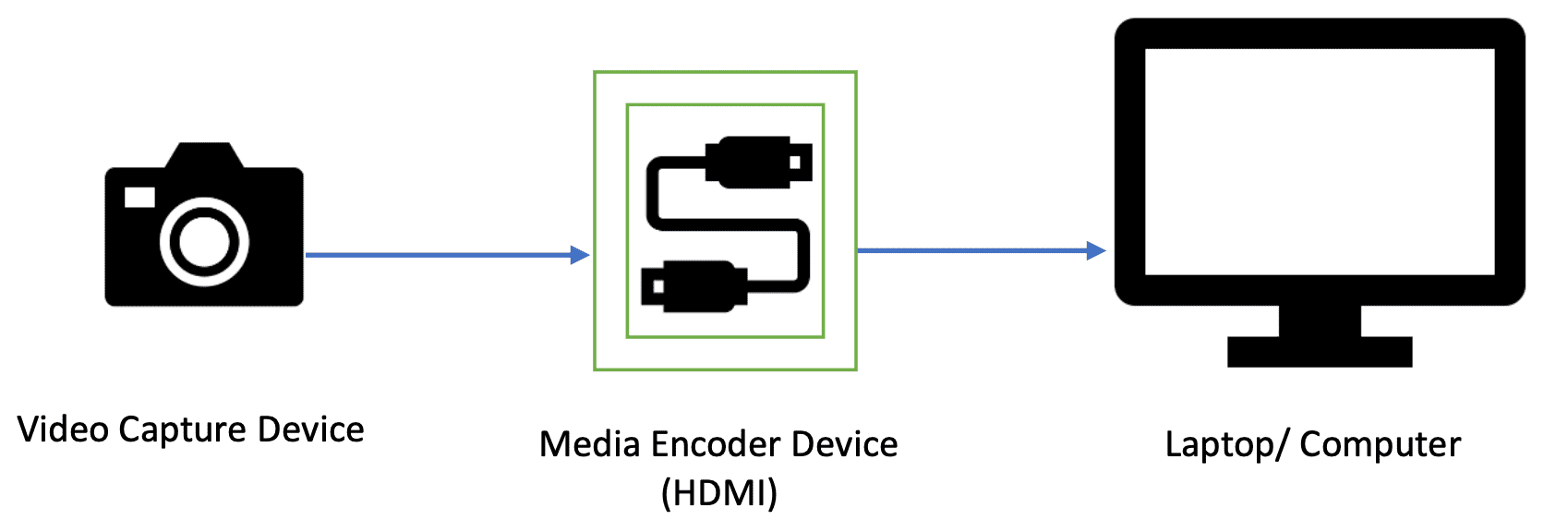
- Setup OBS in your laptop/computer. Download the OBS from website https://obsproject.com/download Install and open the software on your system.
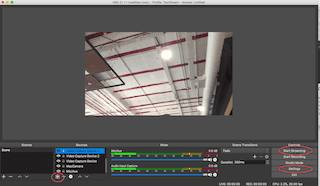
- Add source for your video input. Click on + icon under sources. Click on Video Capture Device. Name your device. Click Ok. If your device is correctly recognised by your laptop/computer, it should appear in your Device list dropdown. Click Ok.
- Go to Settings on bottom right side of OBS window.
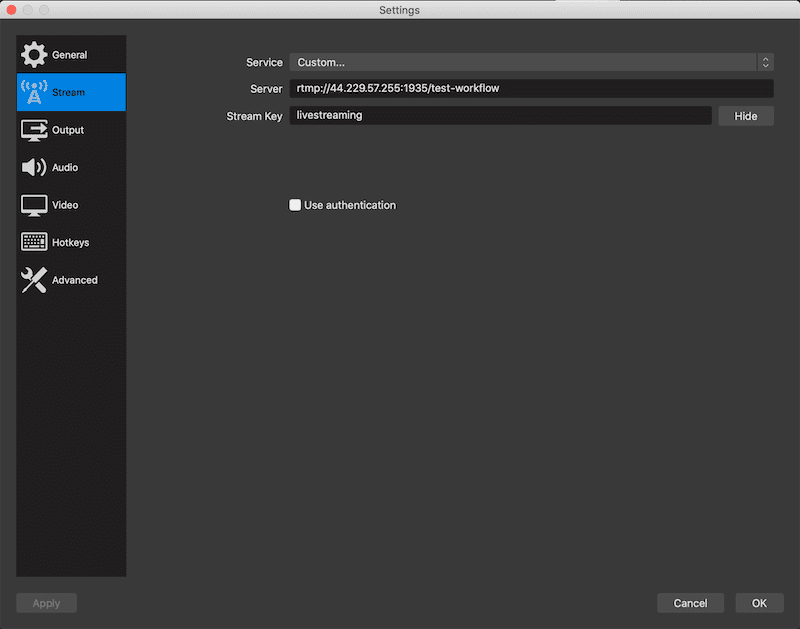
- Go to Stream tab and provide settings for Server and Stream key. Please refer to following screenshot.
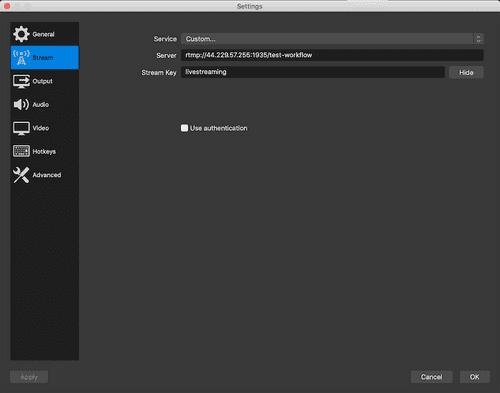 Actual values will be provided before the live streaming starts.
Dummy values:
Server: rtmp://44.229.57.255:1935/test-workflow
Stream key: livestreaming
Actual values will be provided before the live streaming starts.
Dummy values:
Server: rtmp://44.229.57.255:1935/test-workflow
Stream key: livestreaming -
Go to Output tab and select Output mode: Advanced. Provide the settings as mentioned below
- Encoder : x264
- Rate Control : CBR
- Bitrate : 10000 Kbps
- Keyframe interval : 2
- CPU Usage Preset : very fast
- Profile : main
- Tune : None
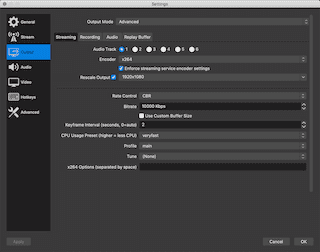
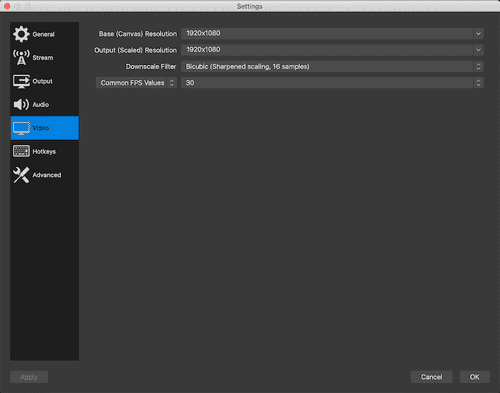
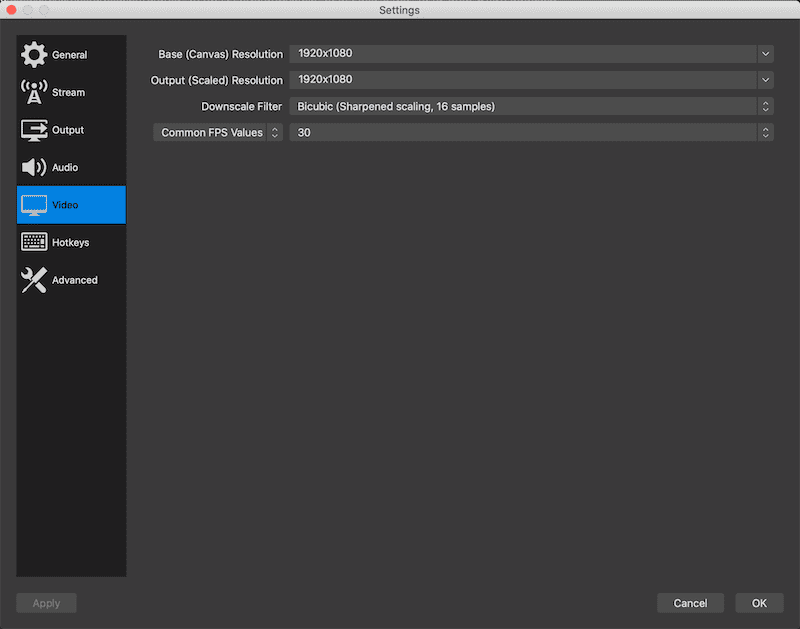
- Changes for Video tab
- Click Ok and come back to main window.
- Make sure channel is live from the channel provider to be enabled to do live streaming. Click on Start Streaming on bottom right side of OBS Screen.
Streaming should start from video capture device to channel provider.