
Live Streaming on AWS Elemental
Live streaming workflow on AWS can be achieved by integrating multiple services. For this, we will be using following services on AWS
- AWS Elemental MediaLive
- AWS Elemental MediaStore
- AWS Elemental MediaConvert
- Amazon CloudFront
- Amazon S3
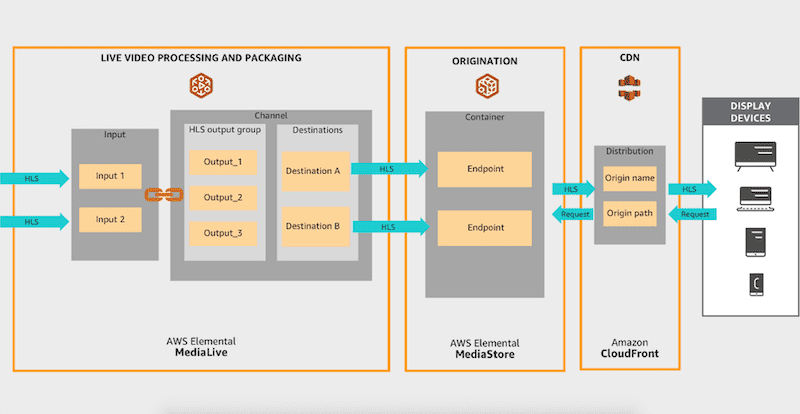
Apart from the workflow above, we will also be creating an archive group in Amazon S3 from the HLS output of MediaLive. This S3 will be source to Amazon Elemental MediaConvert which will convert input video into multiple output formats, to support viewing on a broad array of devices at varying resolutions.
The workflow needs 2 major configurations
- OBS setup at the source of live streaming
- AWS workflow setup (as shown in picture above)
AWS workflow setup
Task 1: Create a MediaStore Container
- Goto AWS Console → MediaStore.
- In Create a storage container, enter test_workflow_container_1.
- Click Create Container
POST call
POST / HTTP/1.1
Host: mediastore.us-west-2.amazonaws.com
x-amz-Date: 20170323T120000Z
x-amz-target:ElementalMediaStoreService_20160711.CreateContainer
content-type:application/x-amz-json-1.1
Content-Length:30
Authorization: AWS4-HMAC-SHA256
Credential=<API-KEY>/20141123/us-west-2/mediastore/aws4_request,
SignedHeaders=host;x-amz-date;x-amz-mediastore-version,
Signature=9257c16da6b25a715ce900a5b45b03da0447acf430195dcb540091b12966f2a2
{
  "ContainerName": "test_workflow_container_1",
}
Task 2: Create an Amazon CloudFront Distribution
- Goto AWS Console → CloudFront.
- On CloudFront Distribution page, click Create Distribution
- In Web section, click Get started
- Under Origin Settings, choose the MediaStore container you created above. Note: It may take a moment for the container to populate the drop-down list.
- For Origin Protocol Policy, select Match Viewer This determines whether you want CloudFront to connect to your origin using only HTTP, only HTTPS or by matching protocol used by viewer.
- Leave all other settings to default and click Create Distribution
- The status for this newly created distribution will be In Progress. It will take around 20 minutes to provision the distribution and the status to update to Deployed
CloudFront Distribution XML
POST /2019-03-26/distribution HTTP/1.1
<?xml version="1.0" encoding="UTF-8"?>
<DistributionConfig xmlns="http://cloudfront.amazonaws.com/doc/2019-03-26/">
   <Origins>
      <Items>
         <Origin>
            <CustomOriginConfig>
               <OriginProtocolPolicy>Match Viewer</OriginProtocolPolicy>
            </CustomOriginConfig>
            <DomainName>3wdmrnzrlqfgto.data.mediastore.us-west-2.amazonaws.com</DomainName>
            <Id>MS-3wdmrnzrlqfgto.data</Id>
         </Origin>
      </Items>
      <Quantity>integer</Quantity>
   </Origins>
   <WebACLId>string</WebACLId>
</DistributionConfig>
Task 3: Setup MediaLive inputs
MediaLive has 2 main components: Input which connects to the source and Channels which specify the encoding instructions and output destinations.
- Goto AWS Console → MediaLive.
-
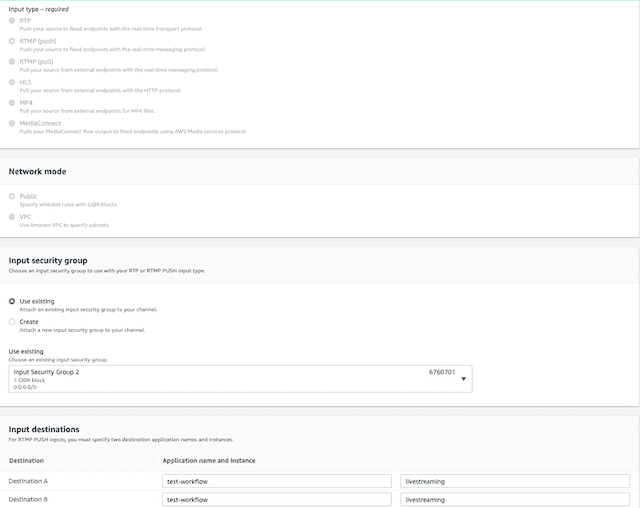
Expand the navigation panel on left. Click Input → Create Input
- Input Name: test-workflow-input-14-01
- Input type: RTMP(push)
- Network Mode: Public
- Input Security Group: 1 CIDR Block 0.0.0.0/0 (Use existing)
-
Input Destinations
- Destination A: test-workflow livestreaming
- Destination B: test-workflow livestreaming
- Click Create
- MediaLive adds input to the list of inputs.
Note:
- In a "push" delivery, the upstream system is pushing the stream from two IP addresses on the upstream system
- MediaLive always creates two endpoints.
- If the channel for this input will be set up as a standard channel, both endpoints will be used.
- If the channel for this input will be set up as a single-pipeline channel, only the first endpoint will be used. MediaLive won't expect to receive content at the second endpoint.
- A standard channel provides two redundant encoder pipelines, a single pipeline channel creates only a single encoder pipeline.
Sample configuration
Task 4: Configure a channel in MediaLive
-
Click Create Channel
- Channel Name: test-workflow-stream-channel-1
- IAM role: MediaLiveAccessRole (Use existing)
- Channel Template: HTTP Live Streaming (HLS)
-
Attach an input to this channel
- On left panel, Input attachments, Click Add
- Under Input Attachment Name, Select the input you created earlier test-workflow-input-14-01
- General input settings can be left as default
-
Move on to 1st output group TN2224.
- Rename the output group to HLS Stream
- Change the CDN settings to Hls media store
- Keep this tab open as it is.
You have begun the process of creating a channel and attaching inputs in MediaLive. Next you will provide this channel its output destinations, which will be in MediaStore we created in Task1 (test_workflow_container_1). Move to MediaStore in console to get these end points and update in MediaLive output group HLS Stream
Task 5: Copy the MediaStore endpoint
- Go to AWS Console → MediaStore → test_workflow_container_1
- In the Info section, copy the Data Endpoint URL.
Task 6: Configure MediaLive to output to the MediaStore endpoint
- Move back to the left open tab in Task 4
- Under HLS Stream output group, there are 2 destinations HLS group destination A and HLS group destination B.
-
The URL copied will be something like this https://3wdmrnzrlqfgto.data.mediastore.us-west-2.amazonaws.com. Update this URL as mediastoressl://3wdmrnzrlqfgto.data.mediastore.us-west-2.amazonaws.com/hls-a/stream-a
and copy it in HLS group destination A. hls-a is unique directory destination. stream-a is manifest basename
- Similarly, update HLS group destination B as mediastoressl://3wdmrnzrlqfgto.data.mediastore.us-west-2.amazonaws.com/hls-b/stream-b
- The URLs in HLS group destination A and HLS group destination B must be unique else there will a validation error
Task 7: Check encoding settings and start MediaLive channel
- Output 10 is webvtt captions. This is not required. Remove this output.
-
Under Actions of Output 1, click Settings
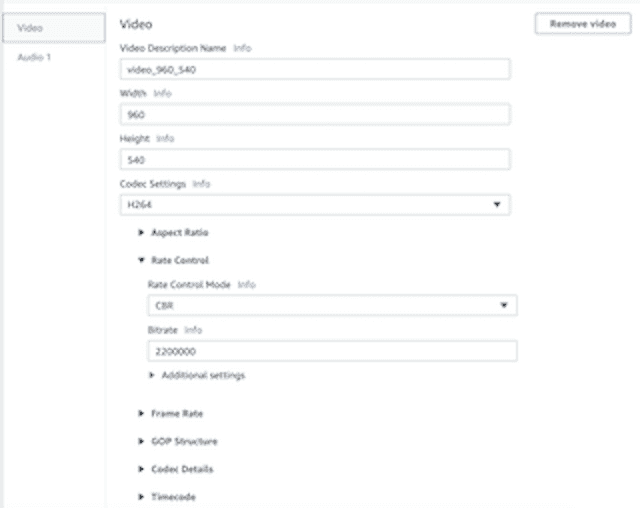
- Under Video, you will see preconfigured values of width as 960 and height as 540.
- For Codec settings, the template preconfigured as H264
-
Expand Rate Control
- Notice that the template selected is CBR Rate Control Mode and Bitrate of 2200000.
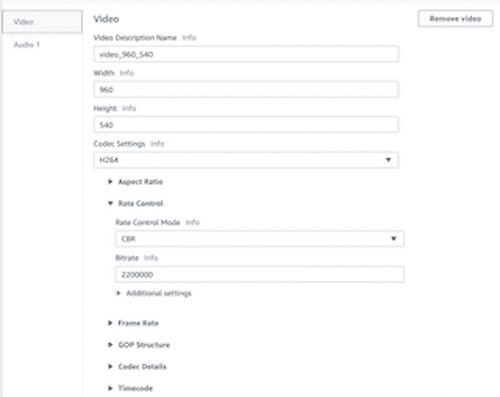
- Notice that the template selected is CBR Rate Control Mode and Bitrate of 2200000.
- Start the channel after next task.
Task 8: Create Archive group for VOD
- Go to AWS Console → S3 → Create Bucket.
- Enter the bucket name as test-workflow-livestream-bucket-1.
- Create 2 folders in this bucket as delivery and backup.
- Coming back to the same MediaLive channel you are working on, create a new output group by clicking Add in front of Output group in the left pane.
- Choose Archive as the output group and click Confirm.
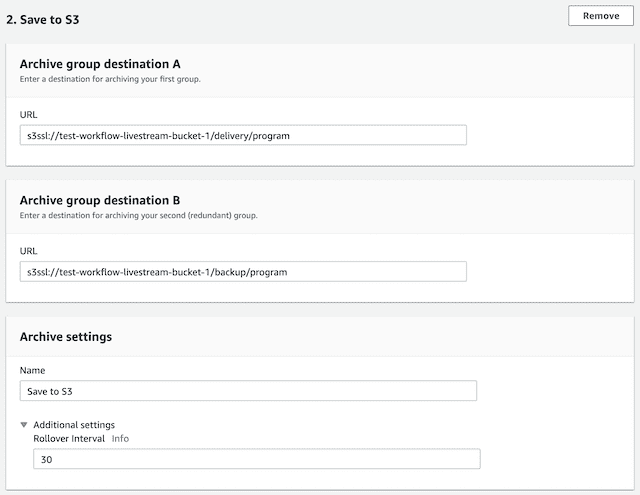
- Under Archive group destination A, enter the value as s3ssl://test-workflow-livestream-bucket-1/delivery/program
- Similarly, under Archive group destination B, enter the value as s3ssl://test-workflow-livestream-bucket-1/backup/program
-
Under Archive Settings, name the channel as Save to S3
- Expand the Additional settings.
- Rollover Interval is the value which determines after how much seconds, the live streamed video will be dumped in this S3 bucket. Idle value is 300 seconds.
9.Click Create Channel. Once the channel is created, Click Start. In a minute, the channel will be started.
Task 9: Checking contents on MediaStore container
At this point, the OBS is streaming the video. Once the MediaLive channel is up and running, it will begin creating object-based directories on the MediaStore container, in this case as hls-a and hls-b. Within those directories, there will be HLS master and variant manifests (.m3u8) and well as transport segments (.ts)
- Go to AWS Console → MediaStore → test_workflow_container_1
- Under test_workflow_container_1: Items, there will still be no items. Click Refresh
- Now you will see hls-a directory. Click on hls-a to reveal its contents.
- Locate the parent manifest: stream-a.m3u8
- Click this manifest stream-a.m3u8
- Under object name, copy the object name URL which looks something like https://bftwstdfnjd3og.data.mediastore.us-west-2.amazonaws.com/hls-a/stream-a.m3u8
- You can test this stream by running the command curl -vvv https://bftwstdfnjd3og.data.mediastore.us-west-2.amazonaws.com/hls-a/stream-a.m3u8
- This results in 403 Forbidden error
Task 10: Edit MediaStore Container and CORS policy
- Go to AWS Console → MediaStore → test_workflow_container_1
- Move to Container Policy section and click Edit Policy
- Enter the policy as
MediaStore container Policy
{
  "Version" : "2012-10-17",
  "Statement" : [ {
    "Sid" : "MediaStoreFullAccess",
    "Effect" : "Allow",
    "Principal" : {
      "AWS" : "arn:aws:iam::361242680605:root"
    },
    "Action" : "mediastore:*",
    "Resource" : "arn:aws:mediastore:us-west-2:361242680605:container/test_workflow_container_1/*",
    "Condition" : {
      "Bool" : {
        "aws:SecureTransport" : "true"
      }
    }
  }, {
    "Sid" : "MediaStorePostToSpecificPath",
    "Effect" : "Allow",
    "Principal" : {
      "Service" : "medialive.amazonaws.com"
    },
    "Action" : "mediastore:PutObject",
    "Resource" : "arn:aws:mediastore:us-west-2:361242680605:container/test_workflow_container_1/*",
    "Condition" : {
      "Bool" : {
        "aws:SecureTransport" : "true"
      }
    }
  }, {
    "Sid" : "PublicReadOverHttps",
    "Effect" : "Allow",
    "Principal" : "*",
    "Action" : [ "mediastore:GetObject", "mediastore:DescribeObject" ],
    "Resource" : "arn:aws:mediastore:us-west-2:361242680605:container/test_workflow_container_1/*",
    "Condition" : {
      "Bool" : {
        "aws:SecureTransport" : "true"
      }
    }
  } ]
}- Also Edit the CORS policy as
MediaStore CORS Policy
[
  {
    "AllowedHeaders": [
      "*"
    ],
    "AllowedMethods": [
      "GET"
    ],
    "AllowedOrigins": [
      "*"
    ],
    "ExposeHeaders": [
      "*"
    ],
    "MaxAgeSeconds": 3000
  }
]
Task 11: Edit CloudFront Cache behavior to set up CORS
- Go to AWS Console → CloudFront. Select your distribution and click Distribution Settings
- Click on Behaviors tab. Select your origin and click Edit.
- For Cache Based on Selected Request Headers, Select Whitelist
- For Whitelist Headers, Select Origin and click Add>>
- Leave rest as default. Scroll down to the last and click Yes edit
This will take some time to propagate.
Task 12: Check playout of stream from MediaStore and CloudFront
MediaStore stream: 1. Go to AWS Console → MediaStore → test_workflow_container_1 2. Click hls-a and look for manifest stream-a.m3u8. Click the manifest and look for object name URL something like https://bftwstdfnjd3og.data.mediastore.us-west-2.amazonaws.com/hls-a/stream-a.m3u8 3. Open this URL in new tab https://www.jwplayer.com/developers/stream-tester/ and paste above streaming URL in File URL field and test the stream
CloudFront stream:
1. Go to AWS Console → CloudFront. Click on your created distribution and copy the Domain Name
 2. Edit the stream-a.m3u8 URL from https://bftwstdfnjd3og.data.mediastore.us-west-2.amazonaws.com/hls-a/stream-a.m3u8 to https://d1b2i1qy1t8sra.cloudfront.net/hls-a/stream-a.m3u8
3. Open this URL in new tab https://www.jwplayer.com/developers/stream-tester/ and paste above CloudFront URL in File URL and test the stream
2. Edit the stream-a.m3u8 URL from https://bftwstdfnjd3og.data.mediastore.us-west-2.amazonaws.com/hls-a/stream-a.m3u8 to https://d1b2i1qy1t8sra.cloudfront.net/hls-a/stream-a.m3u8
3. Open this URL in new tab https://www.jwplayer.com/developers/stream-tester/ and paste above CloudFront URL in File URL and test the stream
Voila! You are done!